
In most offices, staff use personal devices for work long before anyone decides they may. They add work email to their phones, open a contract on a home laptop or join a Teams call from a family tablet. The real decision is on what terms, and how company data comes back out when a phone is lost or someone leaves.
Why personal devices need their own rules
On a company laptop, IT decides which apps are installed, when updates run and who signs in. On a personal device, the employee decides. That leaves gaps:
- Shared use. A home computer may be used by a partner or children, often through a single account.
- Missed updates. An older phone may no longer get security updates, or the owner may postpone them.
- Unmanaged copies. A file saved from email can end up in Downloads, a personal cloud backup or another app.
- Repairs. A phone handed to a repair shop may still hold work email and signed-in sessions.
- Leavers. Disabling someone's account stops future sign-ins, but it does not remove files they already downloaded.
None of this means banning personal devices. It means the business sets the rules, not each employee.
Decide what work is allowed, not just which devices
Start with the work and the information involved. A sensible split for many smaller firms:
- Usually fine on a personal phone: reading and replying to email, Teams chat and meetings, viewing documents, approving requests, all through approved apps.
- Better on a company device: client database exports, financial records, HR and legal files, and anything that keeps large amounts of data on the device.
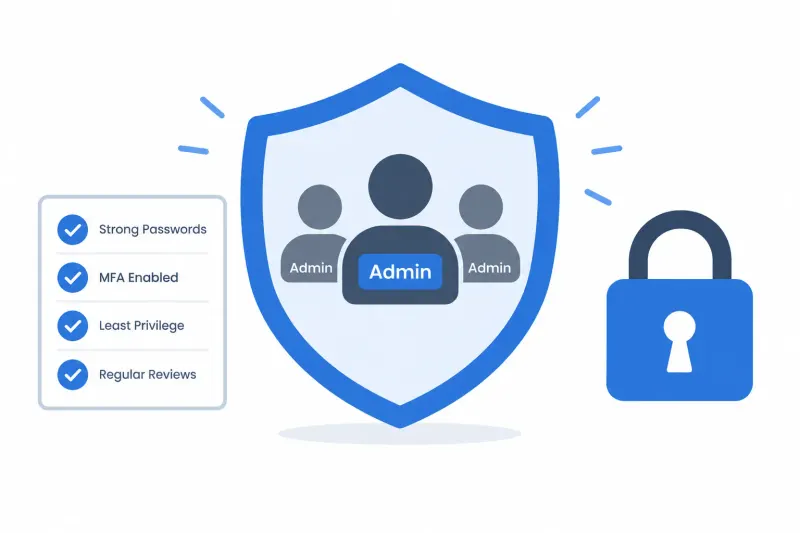
- Company device only: administering accounts, security settings, backups and business systems (see our article on admin account hygiene).
Apply the same rules to contractors. Firms with strict client confidentiality may want tighter limits, so involve whoever looks after compliance.
The Microsoft 365 way to manage personal devices
Most of our clients run Microsoft 365, where Microsoft Intune handles devices and apps. Microsoft's planning guide pairs personal devices with mobile application management (MAM) and organisation-owned devices with mobile device management (MDM). Check which features your licences include.
App protection without enrolling the device
With app protection policies, the employee's phone is not enrolled. Instead, Intune protects the company data inside supported apps such as Outlook, Teams and the Microsoft 365 apps. Microsoft says these policies can:
- require a PIN or biometric check to open work data
- block copy and paste, screenshots and transfers into unmanaged apps
- stop work data being saved to personal storage
- encrypt organisation data held by the app
- remove organisation data remotely when a device is lost or the user leaves
Personal photos, messages and apps are left alone. Microsoft describes this as a good option for organisations that want to protect their data without managing the whole device, and it is usually where we start for staff phones.
Full enrolment, and why to be careful
Enrolling a device gives IT full control, including a complete wipe. That suits company-owned laptops and phones. For personal devices, Microsoft's planning guide cautions that staff may not realise an administrator could accidentally wipe or reset their device, and that you may not want that liability for hardware you do not own. If you do enrol personal devices, explain the risks to staff first.
Conditional Access ties it together
Policies only help if people cannot go around them. Conditional Access in Microsoft Entra ID checks each sign-in and can require MFA, a compliant device, or an app covered by app protection policies. Microsoft points out that if you require enrolment to use the Outlook app, staff may simply open Outlook in a web browser instead, so decide what browser access on personal devices may do. Our Microsoft 365 services team can review your current set-up.
Minimum requirements for any personal device
Before a personal device touches company data, it should have:
- a supported operating system, with updates installed promptly
- a screen lock (PIN, password or biometrics) that engages automatically
- device encryption switched on, backed by a strong PIN or password
- MFA on work email, file storage and other key systems
- no rooting or jailbreaking
- work done only in approved apps
- on shared home computers, a separate account for the employee
Tell staff who to contact if a device is lost, stolen, sent for repair or replaced. The sooner you hear, the sooner you can act.
When a device is lost or someone leaves
For a lost or stolen device, the usual steps are:
- Revoke the user's active sessions in Microsoft Entra ID.
- Remove company data from the protected apps (Intune calls this a selective wipe).
- Check recent sign-ins for anything unexpected and reset credentials if they may be exposed.
- Note which company files may have been on the device.
Remote actions have limits. Microsoft states that the user must open the app for an app wipe to happen, and device actions reach an offline device only at its next check-in. A phone that stays switched off may never receive the command, so encryption and a strong PIN matter from day one.
If the device held personal data about clients or staff, consider whether it is a data breach. Hong Kong and Singapore both have guidance on handling and reporting data breaches, so check the current requirements with your legal or compliance adviser straight away.
When an employee leaves, disable the account, revoke sessions, remove company data from managed apps and take the device off your approved list. Ask whether work files were saved elsewhere, and agree how those copies will be deleted.
What your BYOD policy should cover
A short written policy, accepted before access is set up, should cover:
- who may use personal devices, for what work, and in which apps
- whether files may be downloaded or the device shared
- the security settings required
- what the business can see, control and remove, in plain language
- what happens when a device is lost, repaired or sold, and when the employee leaves
- who pays for mobile data, repairs or replacement
Rules on privacy and employment vary from place to place, so ask your adviser to check the policy before you roll it out.
When to provide a company device instead
Provide a company device when the role needs admin access, handles sensitive information or stores a lot of data locally; when the personal device is shared, out of support, unencrypted, rooted or jailbroken; or when you cannot separate and remove your data. Company devices are also easier to support.
Frequently asked questions
Do staff have to enrol their phones to read work email?
No. With Intune app protection policies, staff can use Outlook on a personal phone without enrolling it, and the business can still control and remove the work data in the app.
Can the company see staff's personal photos and messages?
With app protection only, the policies apply to work data in managed apps. Enrolment gives broader control over the device. Either way, tell staff in writing what IT can see and do before access is set up.
Is MFA enough on its own?
No. MFA protects the sign-in. Encryption protects stored data, and app protection controls how work data is copied. You still need updates, screen locks and a lost-device process.
Is BYOD cheaper than buying devices?
It can reduce hardware spending, but management and support still take time and money. It depends on the devices, apps and work you allow.
Sources and further reading
- Microsoft Learn: Protect data and devices with Microsoft Intune
- Microsoft Learn: How to wipe only corporate data from apps
- Microsoft Learn: Planning guide to move to Microsoft Intune
- UK National Cyber Security Centre: Bring your own device guidance
- Personal Data Protection Commission Singapore
If your staff already use personal devices for work and you are not sure what they can reach or remove, our cybersecurity team can check your Microsoft 365 controls and help you write a clear policy. Talk to our team.