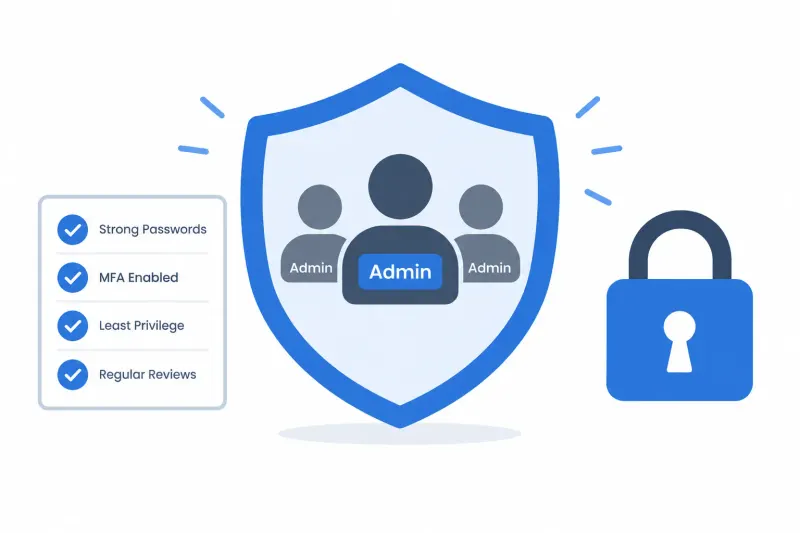

In many offices, a member of staff was given administrator rights on their laptop "just for one install". The install got done, but the rights stayed. This article explains why everyday staff should work from standard user accounts, what goes wrong when they do not, and how to handle genuine software needs without slowing anyone down.
What a local administrator can do
Every Windows PC and Mac has two broad kinds of account. A standard user can do normal work. A local administrator can change the computer itself.
On Windows, members of the local Administrators group have full control of the device, and Microsoft describes keeping that group small as best practice. Apple gives similar advice for the Mac: administrators can add and remove users, install and remove software and change settings, so Apple recommends limiting the number of people with those privileges.
In practice, someone with local admin rights can:
- install any software, including remote access tools, drivers and background services
- change system settings, including some security settings
- add or change other accounts on the computer
- change permissions on files and folders that other users rely on
This is about the device on the desk, not your cloud services. A person can be a local administrator on their laptop without holding any admin role in Microsoft 365, and the other way round. Privileged IT and cloud accounts need their own controls, which we cover in admin account hygiene.
What goes wrong when staff are administrators
The approval button is in the wrong hands
Windows uses User Account Control (UAC) to pause before changes that need administrator rights. What happens next depends on the account. An administrator sees a consent prompt and can approve the change with one click. A standard user sees a credential prompt and needs an administrator's password to continue. Microsoft says making your main account a standard user is the recommended and more secure way to run Windows.
That one click is the weak point. A fake update and a genuine installer can look very similar. When an administrator approves it, the program can install itself deep in the system and change settings. When a standard user meets the prompt, it stops there, and IT gets the chance to ask what it is.
Harmful software gets more room to work
If an account can approve its own elevation, anything harmful that tricks the user into clicking "Yes" can make changes that are hard to undo, such as installing services that keep running in the background. Apple notes that if a standard account is compromised, the potential harm is far more limited than with an administrator account.
Laptops drift from how IT set them up
Staff with admin rights change things for understandable reasons: a setting to get a home printer working, a tool a supplier asked them to install. Each change is small, but over months the laptops stop matching the standard build. Support gets slower, and it becomes harder to answer a client's or auditor's question about who can change what on your devices.
The same admin password on every machine
Many offices give every laptop the same local administrator password, and over time more people learn it. Microsoft warns that identical local administrator passwords make it easier for an attacker who obtains one to move from computer to computer, and recommends a unique password for each device.
What staff can still do with a standard account
A standard account covers nearly everything in a working day: email, Teams meetings and the Microsoft 365 apps, the browser, approved business applications, files in OneDrive and SharePoint, printing to printers already set up, and personal settings such as wallpaper. Software that adds drivers, services or files to protected parts of the computer is what needs an administrator.
How to handle legitimate needs
The aim is not to say no. It is to make "yes" go through a route IT can see.
Approved software in the Company Portal
If your laptops are managed with Microsoft Intune, your IT team can publish approved applications in the Company Portal app. Microsoft describes two types: optional apps, which the organisation has chosen and staff install when they need them, and required apps, which are installed automatically. Staff pick from a list your IT team has already checked, without needing admin rights of their own.
One clear request route
For anything else, give staff one place to ask, such as your IT helpdesk, and ask for the program name, why it is needed and the official download page. The Company Portal's Help and support page can show your helpdesk details.
IT installs it remotely
For one-off requests, IT can check the installer and install it remotely. The person gets the software, not the admin password.
Elevation on request
Microsoft Intune Endpoint Privilege Management lets staff keep a standard account and still run specific tasks that need elevated rights, such as approved installers. Rules can allow certain files automatically, ask the user to confirm and give a reason, or send the request to IT for approval first. Microsoft says it must be licensed in your tenant before you can use it.
A separate account for technical staff
A few roles genuinely need to install or test software often. Give them a separate administrator account for that work, and keep their normal account standard.
Windows LAPS for the device's own admin account
IT still needs a working administrator account on every laptop for support and recovery. Windows Local Administrator Password Solution (Windows LAPS) is built into supported versions of Windows. It regularly rotates each device's local administrator password, backs it up to Microsoft Entra ID (or Active Directory) and lets authorised administrators retrieve it when they need to sign in or recover a device.
Making the change without disrupting people
Removing everyone's rights overnight risks a Monday morning of stuck staff. A steadier approach:
- List who has admin rights today, on every Windows laptop and Mac, including old setup and supplier accounts.
- Ask why. Updating one application now and then is not a reason for permanent access.
- Confirm IT can get in. Make sure Windows LAPS or another managed admin account works on every device first.
- Test the important software under a standard account. Older and specialist programs are the usual problem, and IT can often fix them by adjusting the application or folder permissions.
- Tell staff first: what is changing, why, and how to ask for software from now on.
- Start with a small group, fix what comes up, then roll out. Staff sign out and back in for the change to apply.
- Review when roles change: when people join, move or leave.
Frequently asked questions
Will removing admin rights stop my staff working?
Everyday work in Microsoft 365, the browser and most business applications carries on as normal. Test specialist and older applications first, and put a clear request route in place before the change.
Should the business owner keep admin rights?
Owning the business does not require admin rights on every computer. Use a standard account day to day, and a separate account for any task that needs administrator access.
Does this stop malware?
It limits what many harmful programs can do, but it does not stop every attack. You still need updates, endpoint protection such as Microsoft Defender, multi-factor authentication and tested backups.
Sources and further reading
- Microsoft Learn: How User Account Control works
- Microsoft Learn: Local accounts
- Microsoft Learn: Windows LAPS overview
- Microsoft Learn: Install work apps from the Company Portal app for Windows
- Apple Support: Set up your Mac to be secure
If you are not sure who has admin rights on your company's laptops, or you would like software requests handled through Intune and Windows LAPS, our managed IT services team in Hong Kong and Singapore can review your devices and plan the change with you. Talk to our team.